Guide
Step-by-step guide: from connecting your CMS to an audit report
AltAuditor finds images without usable alt text in your CMS media library, drafts alt text with AI, lets a person review every text, writes the approved text back to the CMS, and produces an audit report. This guide follows one demo project from start to finish.
The screenshots show a demo project: the company, the site and the data are fictional. The AI proposals in the demo are pre-written, in the same form the model returns (alt text, a confidence value and a suggestion: informative, decorative or complex). In your own projects they are generated from your images.
What AltAuditor covers
AltAuditor covers WCAG Success Criterion 1.1.1 (Non-text Content, Level A) for the images in the media library of the connected CMS. It does not assess the accessibility of the whole site.
Step 1: Run a free scan
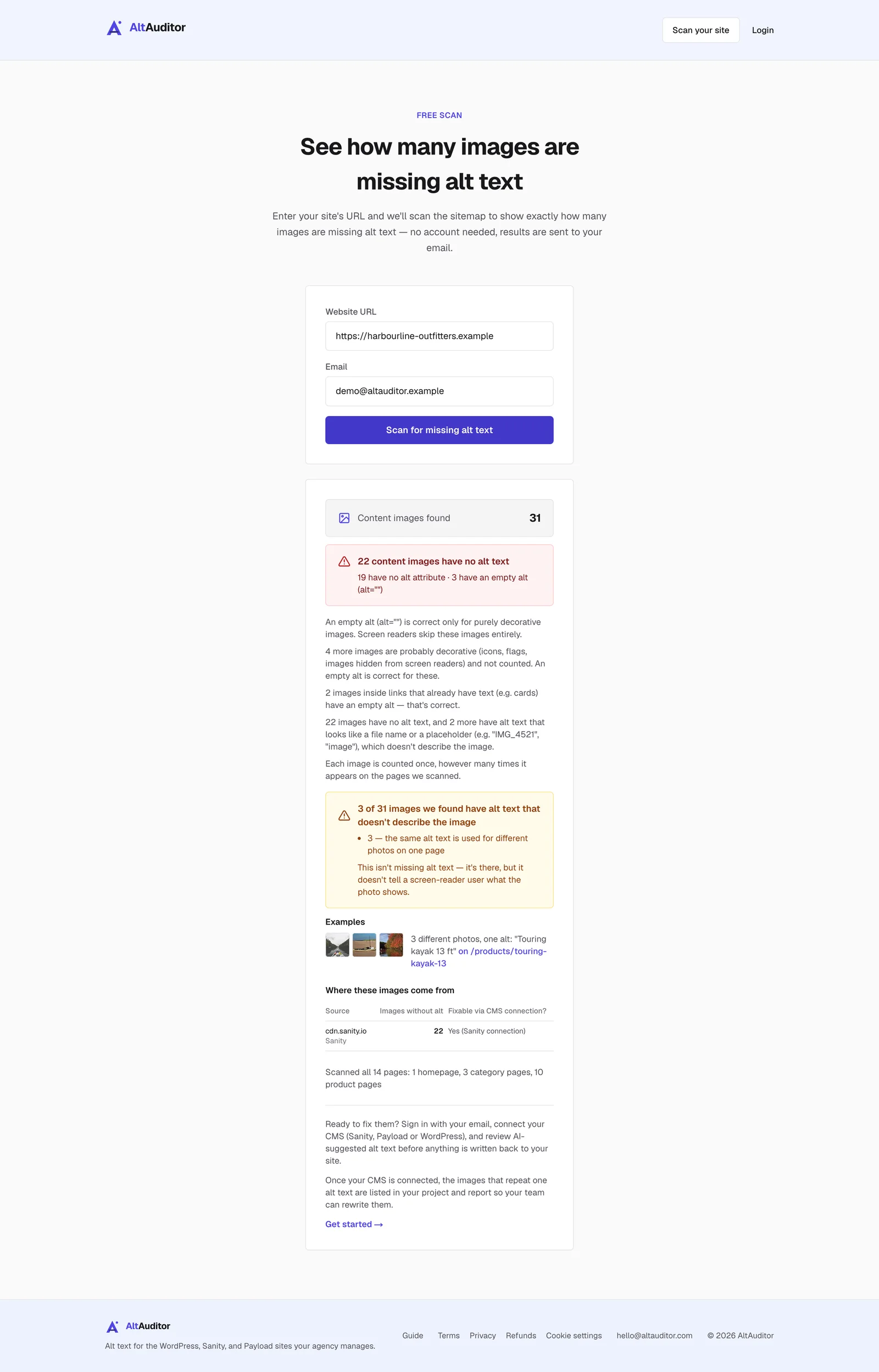
Enter a site's URL on the Scan page. AltAuditor reads its sitemap, or the links on the home page if there is no sitemap, and counts the images that have no alt text. It also counts images whose alt text is only a file name, a placeholder or a product code (such as "IMG_4521.jpg", "image" or "5205746133448"), and shows where the same alt text is used for different photos on one page. On a large site it opens a sample of pages spread across page types and estimates the whole site from that sample. Results are sent to your email. No account is needed.
Some sites block automated scanners. If a site blocks the scan, the result says so instead of showing a number.
Step 2: Connect your CMS
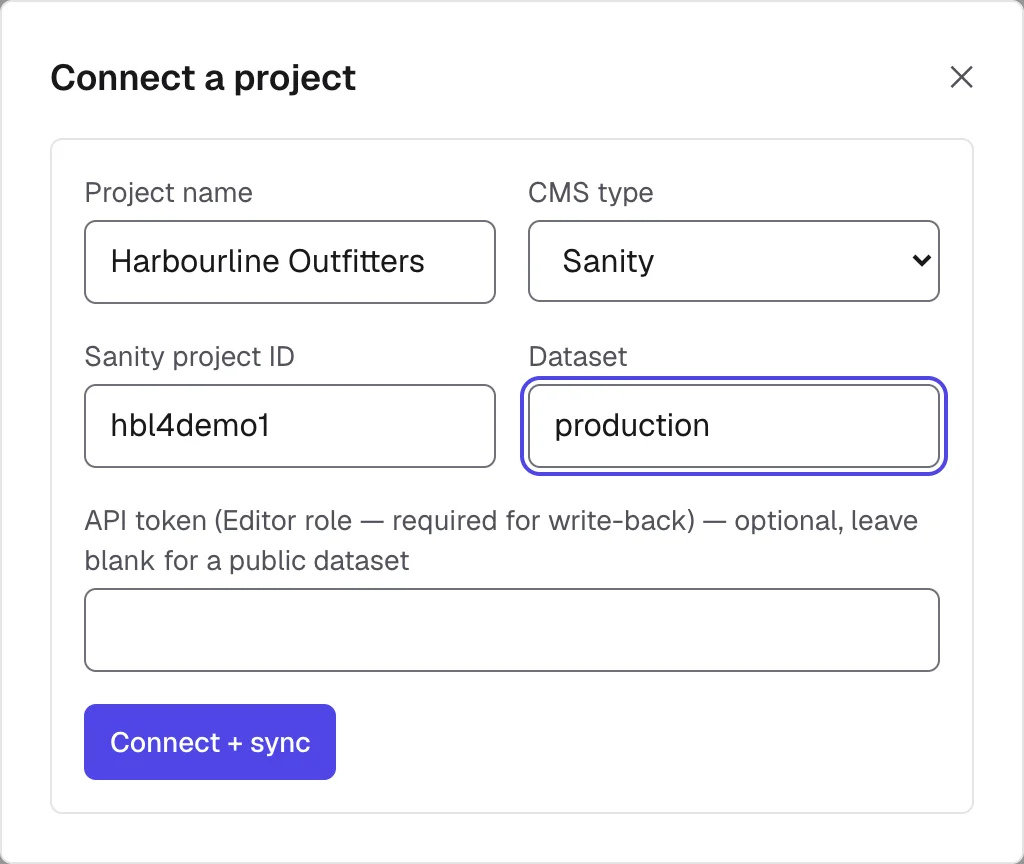
In the dashboard, choose Connect a project, pick WordPress, Sanity or Payload, and enter the connection details for that CMS. For Sanity that is the project ID, the dataset and an API token with the Editor role, which write-back needs.
AltAuditor saves the project and runs a first sync right away. If the connection fails, the error is shown.
Step 3: Sync the media library
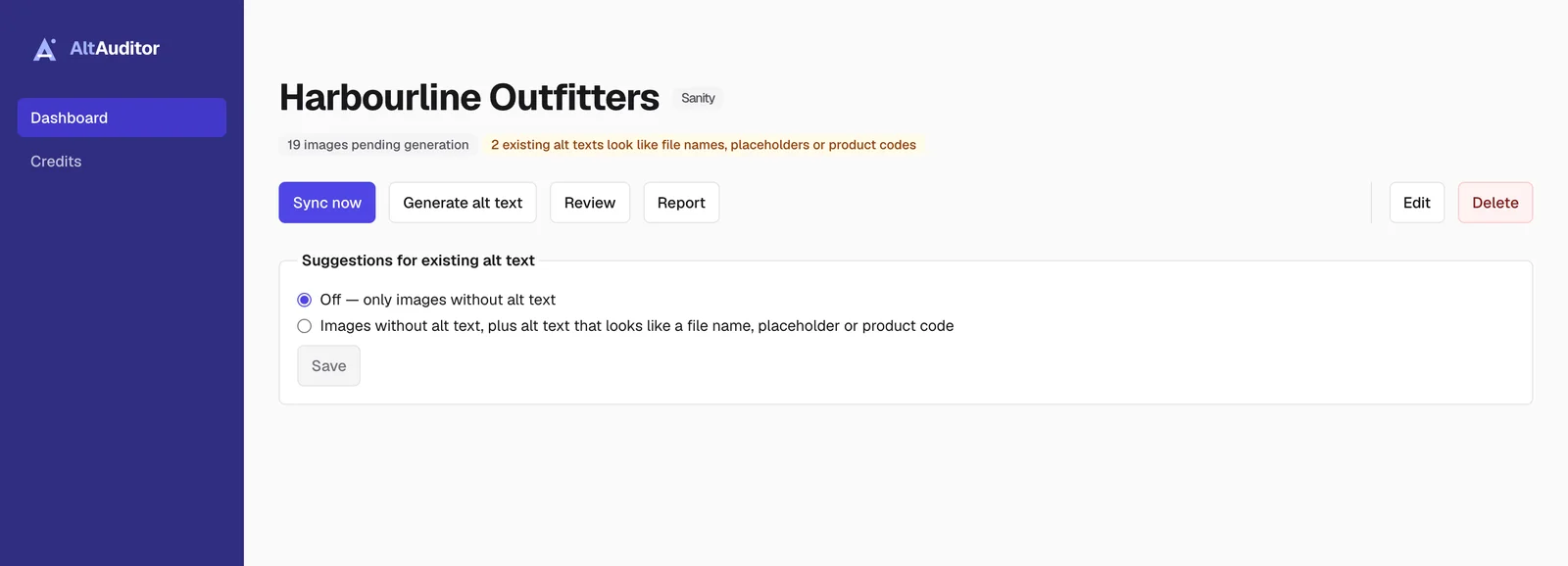
Sync now reads the images in the media library. Images that already have alt text are never sent to the AI and are never changed. Alt text that is only a file name, a placeholder or a product code does not count as covered; the project page shows a warning for those, and a separate note for images that share their alt text with a different image.
Step 4: Generate alt text
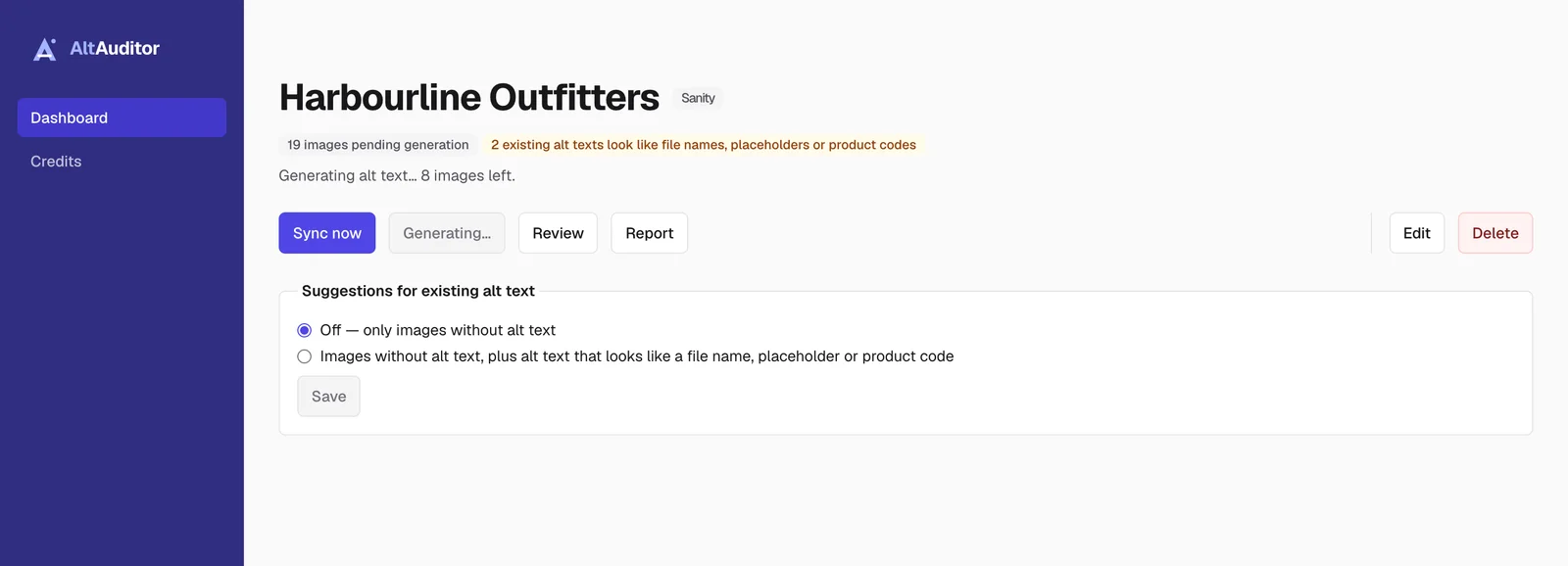
Generate alt text sends a reduced copy of each image without alt text (at most 1024 px) to an AI vision model. The model proposes alt text in the language of the site, taken from its <html lang> attribute. It also suggests whether an image looks decorative or needs a longer description.
These are proposals only. Nothing is applied until a person approves it.
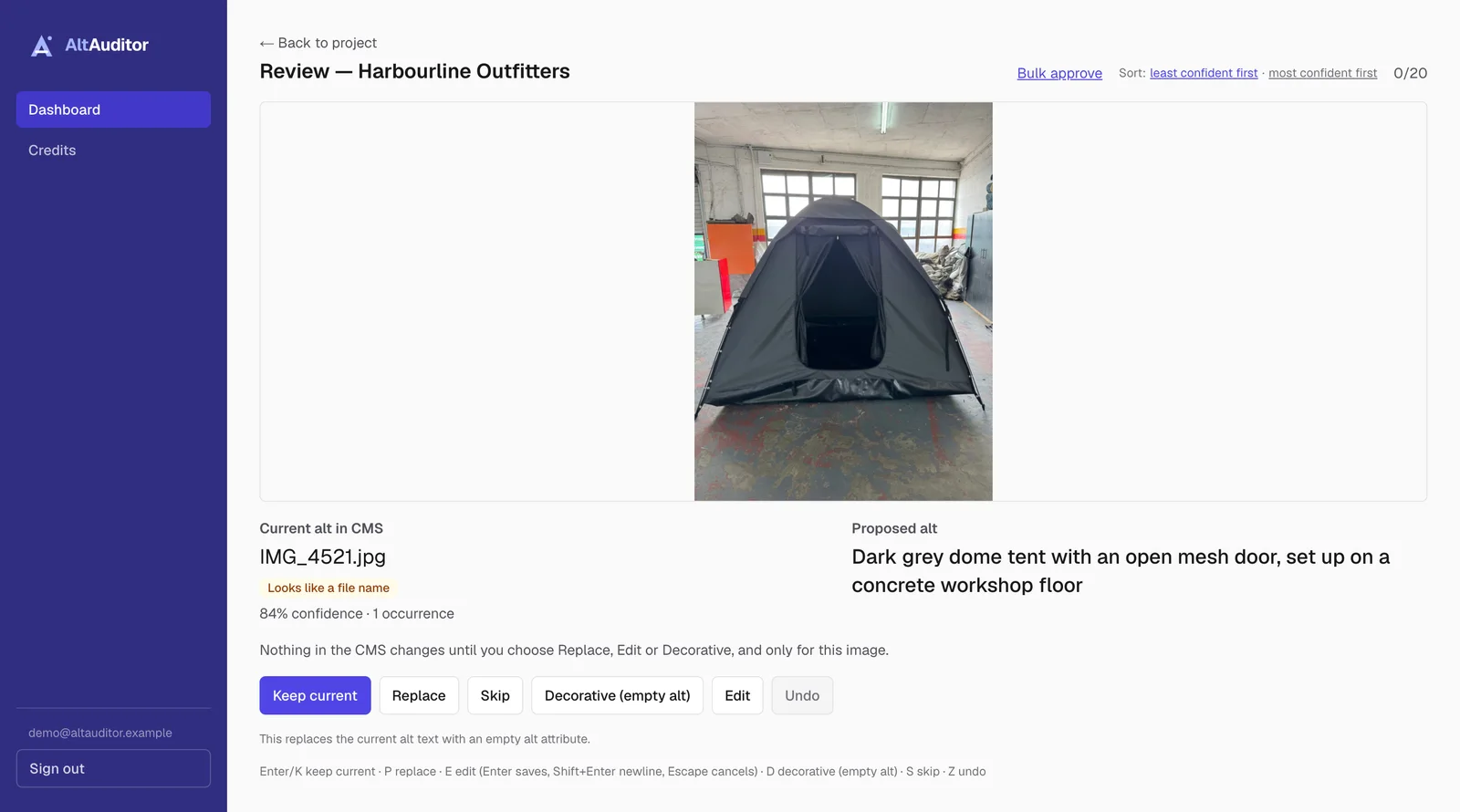
A project can also get proposals for alt text that already exists and looks like a file name, a placeholder or a product code. This is a project setting (Suggestions for existing alt text) and is on by default only for new projects. For these images the review shows the current alt text and the proposal next to each other, and nothing is replaced unless you choose Replace, Edit or Decorative for that image.
Step 5: Review one image at a time
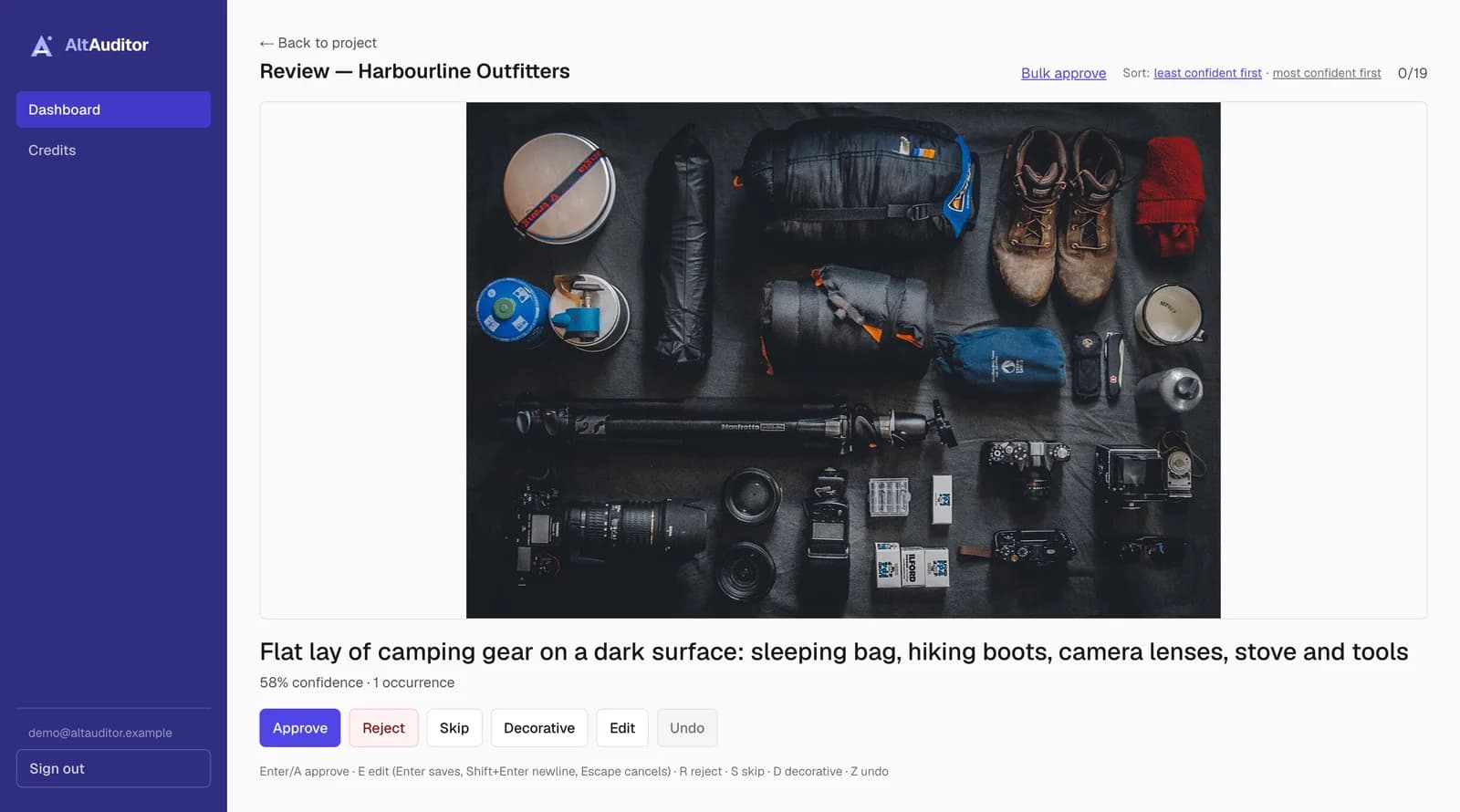
Each image appears with its proposed alt text. Approve with Enter or A, edit with E (Enter saves, Shift+Enter adds a line, Escape cancels), reject with R, skip with S, mark as decorative with D, and undo the last decision with Z.
For an image that already has alt text (when the project setting is on), Enter or K keeps the current text, P replaces it with the proposal, E edits the proposal first, and D replaces it with an empty alt attribute. A and R do nothing on these cards, so a habit cannot replace text by accident.
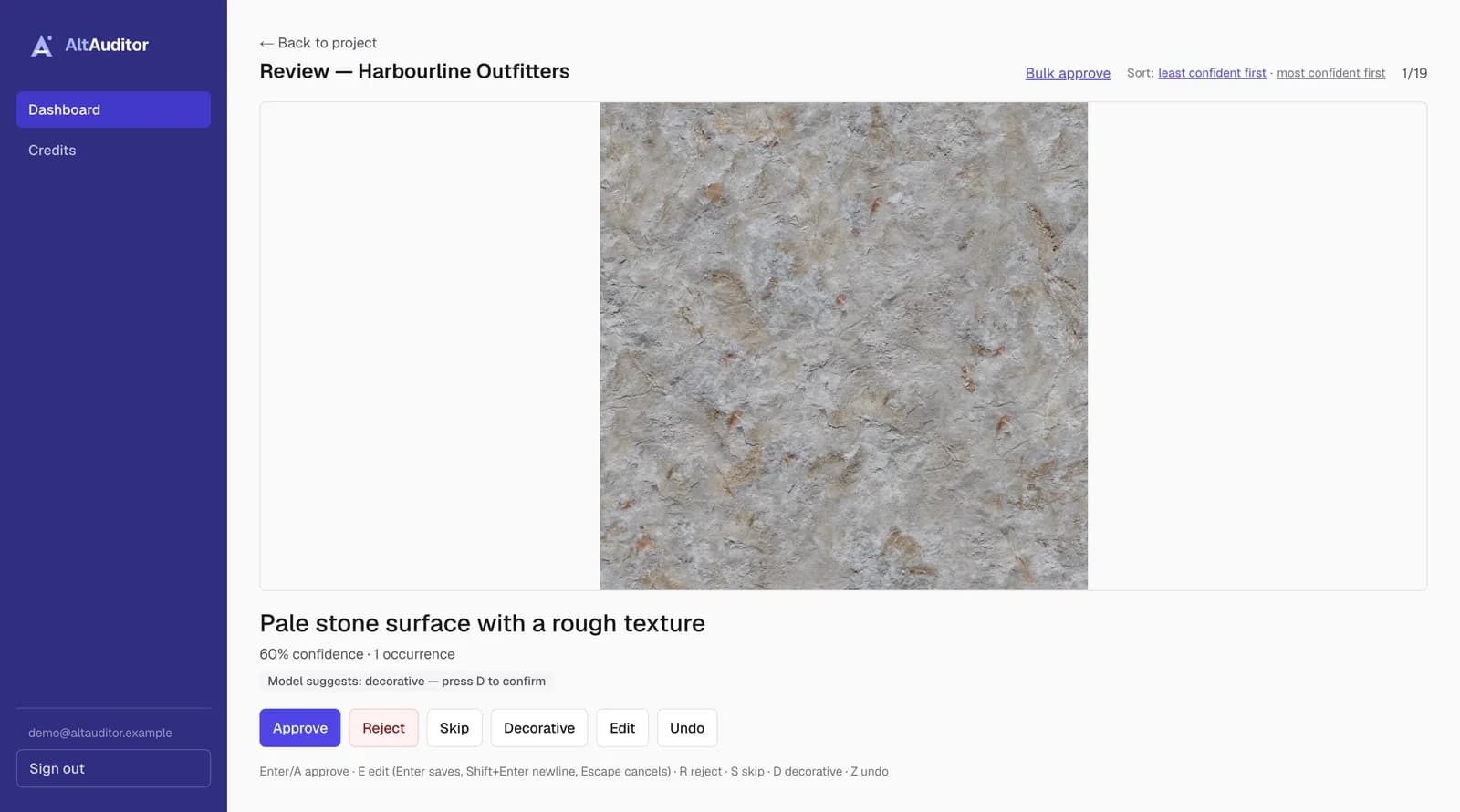
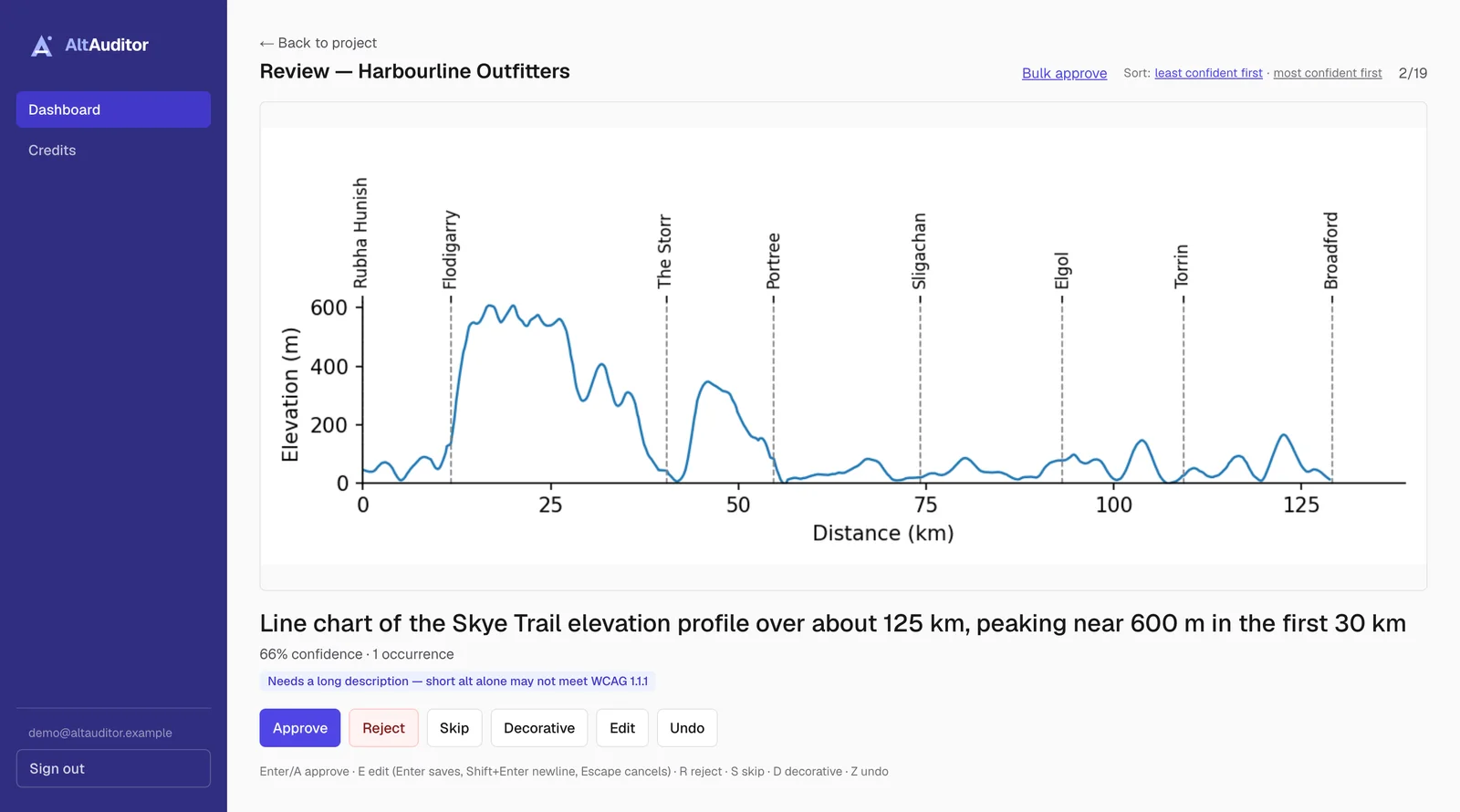
When the model suggests that an image is decorative, the card says so and waits for you to press D. When it suggests that an image needs a longer description, the card says that a short alt text alone may not be enough. An image marked decorative gets an empty alt attribute, as WCAG requires for purely decorative images.
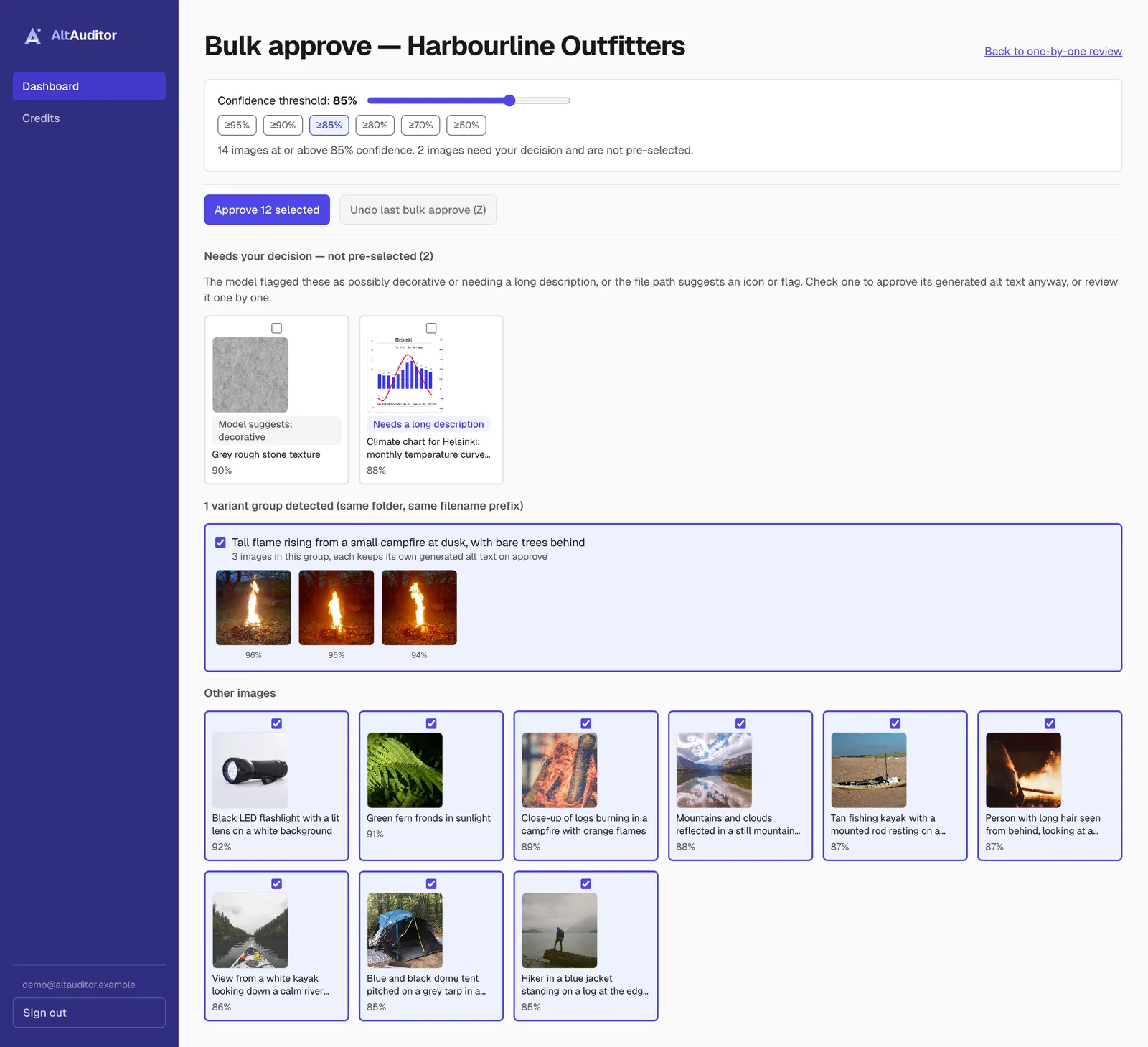
Step 6: Approve the easy ones in bulk
Bulk approve (a link in the review header) shows the images above a confidence threshold, 85% by default, which you can change with the slider. Similar images in the same folder with the same file name prefix are grouped. The confidence value is the model's own estimate: use it to decide where to look first, not as proof that a text is right.
Images the model flagged as decorative or complex, and images whose file path suggests an icon or flag, are listed separately under "Needs your decision" and are never pre-selected. Images that already have alt text are never part of a bulk approve; they are reviewed one by one. You can still select them yourself. Undo last bulk approve (Z) reverts the last bulk approval.
Step 7: Write back to the CMS
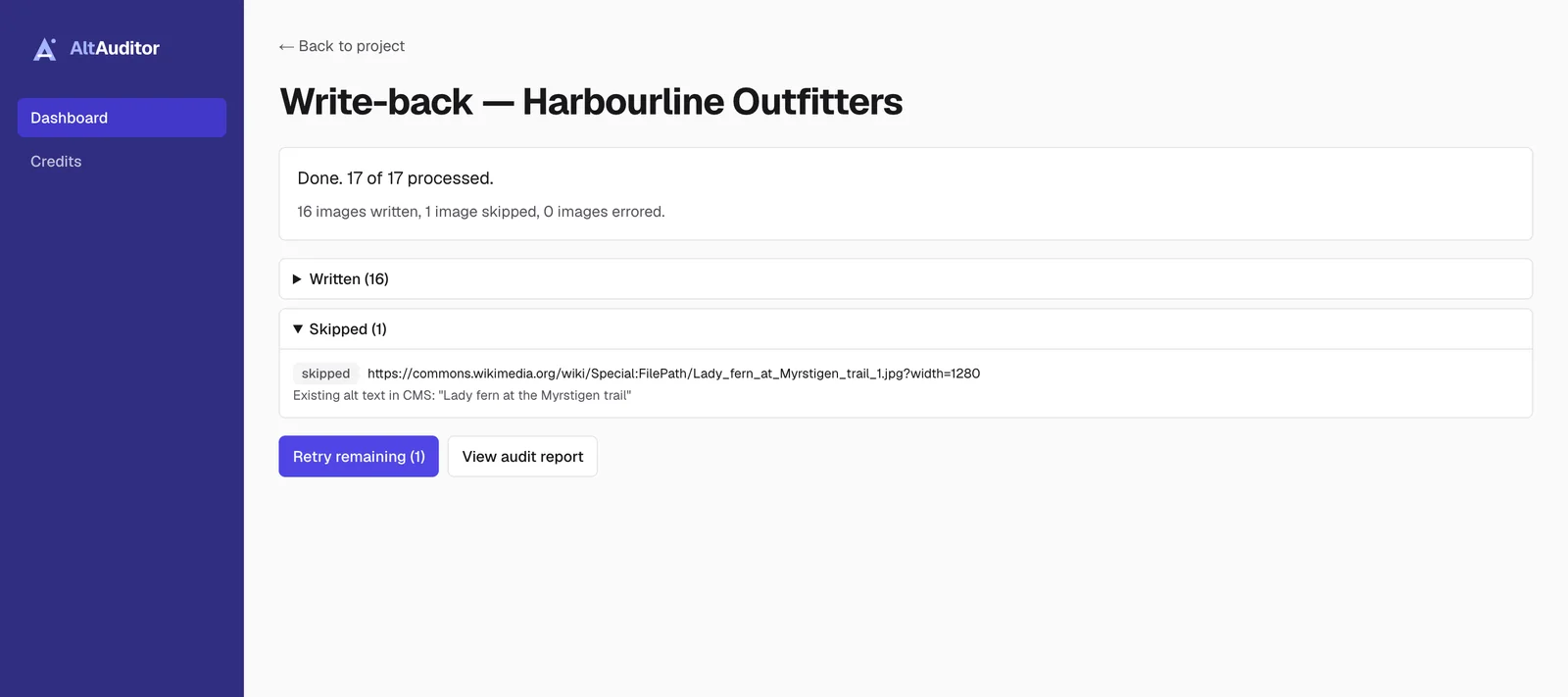
Write-back sends approved and edited alt text to the CMS. Before each write, AltAuditor reads the current alt text in the CMS. If a person has already written different alt text there, it is left as it is and listed as skipped with the text that was found, unless you explicitly approved replacing that exact text for that image. AltAuditor never overwrites existing alt text without your explicit approval, image by image.
Step 8: Download the audit report
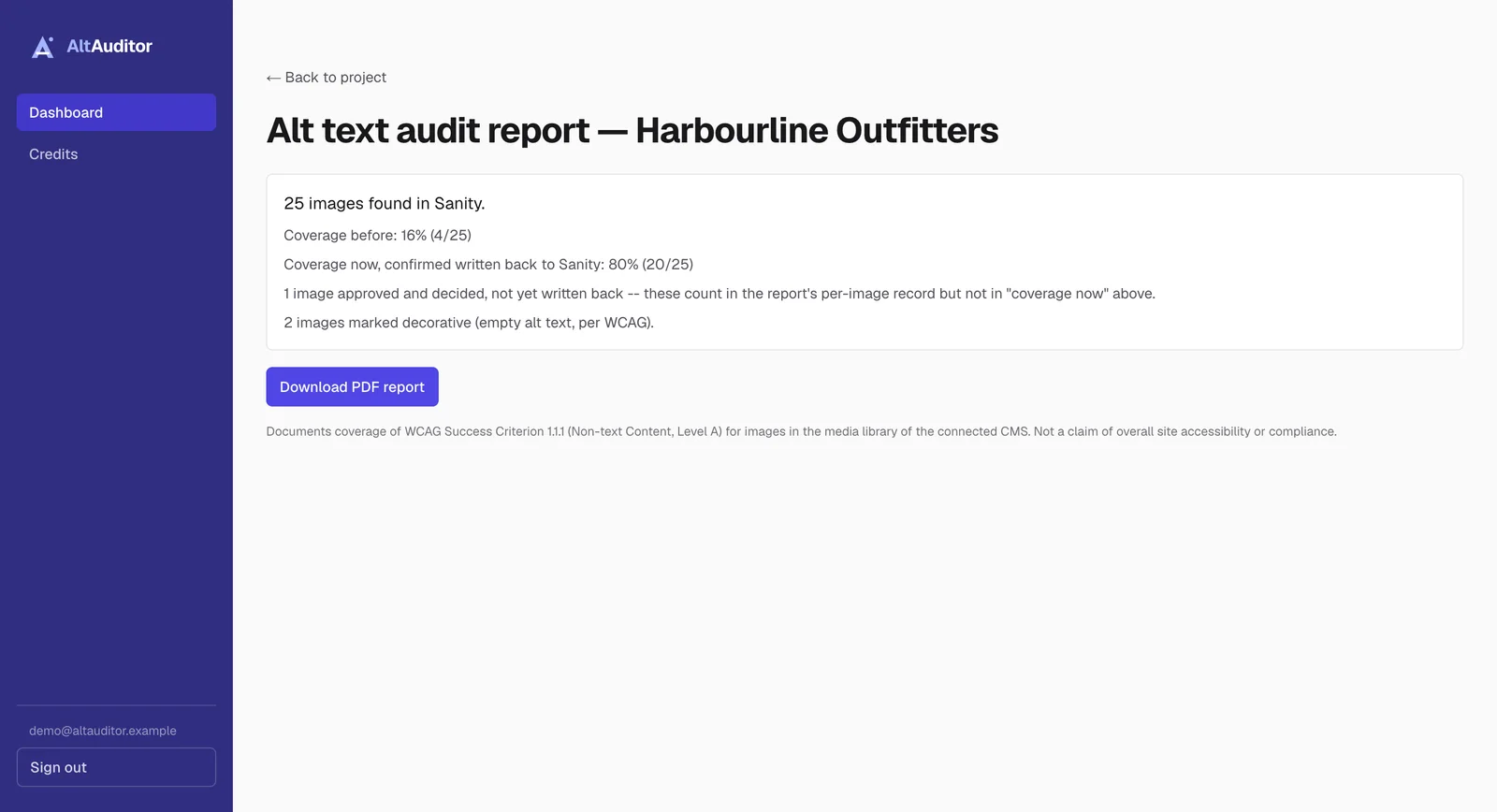
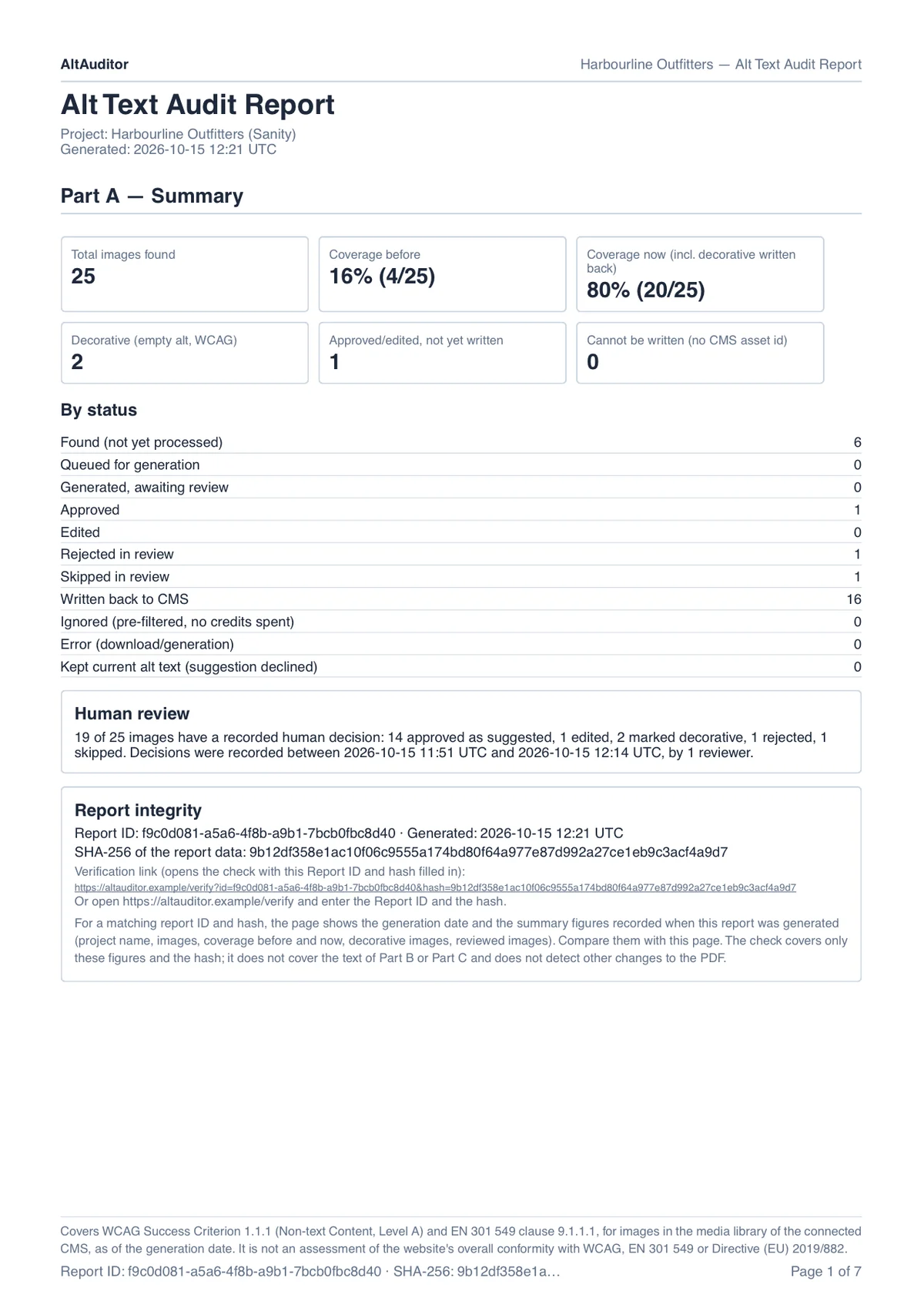
The audit report is a PDF for the project. Page 1 is the summary: images found, coverage before and now, decorative images, a summary of the human review, a report ID and an integrity hash. The following parts list what is not covered, including alt text that is only a file name, a placeholder or a product code, and every image with its decision. The report also states the standard, the scope and the method, and ends with a template for draft accessibility information.
Step 9: Let your client check the report
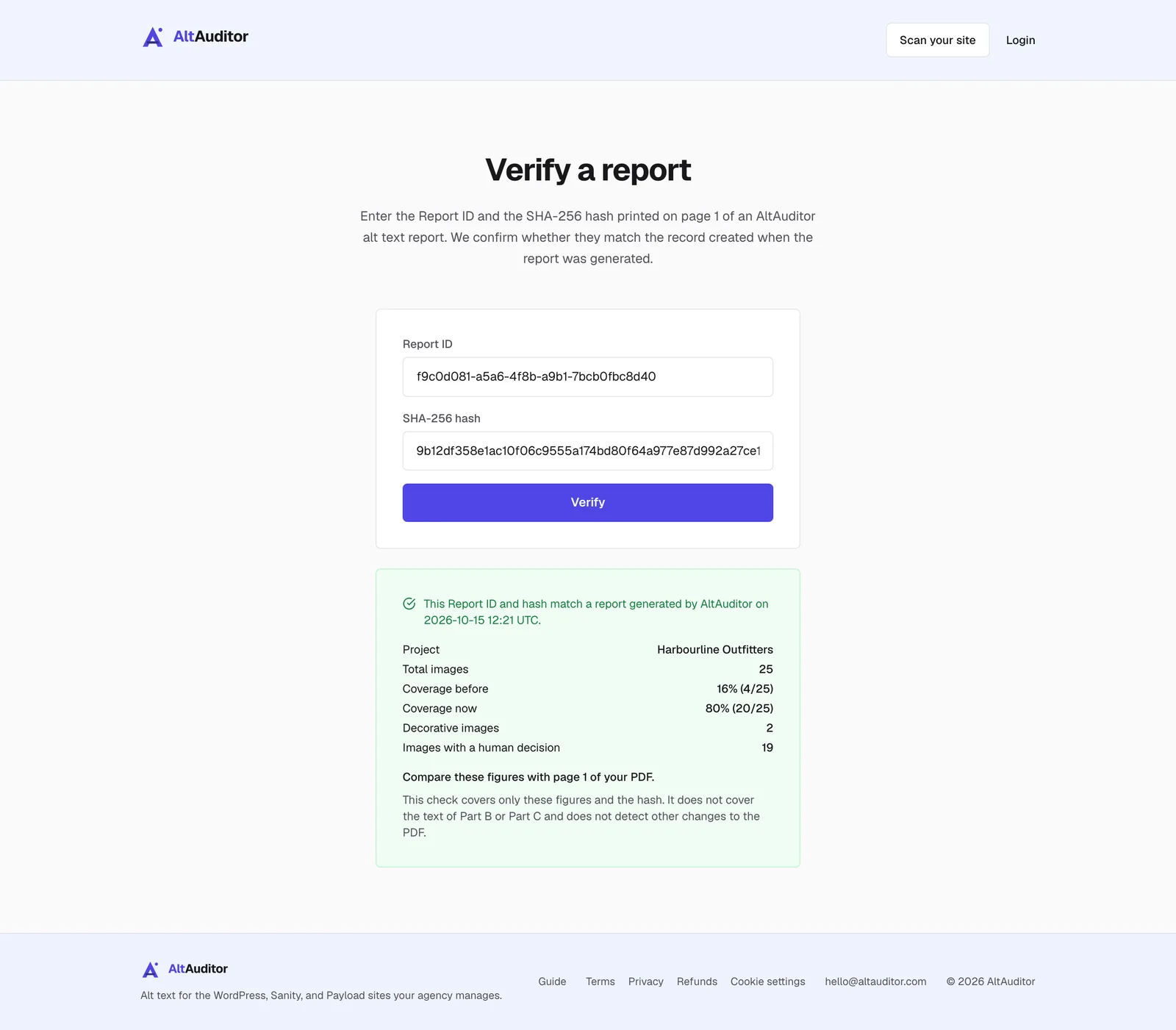
The report contains a link to the Verify page. When the report ID and the hash match, the page shows the figures recorded when the report was generated: project name, images, coverage before and now, decorative images and images with a human decision. Your client can compare them with page 1.
The check covers those figures and the hash only. It does not cover the rest of the PDF.
What AltAuditor does not do
- It does not decide whether existing alt text is accurate. It flags only obvious cases, such as file names, placeholders, product codes and the same alt text on different images.
- It does not write long descriptions for complex images. It flags them for you.
- It covers images in the CMS media library, not images added in other ways, and not other WCAG criteria.
- The audit report is not an assessment of the whole site's conformity with WCAG, EN 301 549 or the European Accessibility Act.
Image credits
The photographs and charts in the demo project come from Wikimedia Commons. All are released under CC0 (public domain dedication); credit is given as a courtesy.
- Boots of a man.jpg by W.carter (CC0)
- The Photographers Backpack (Unsplash).jpg by Alexander Andrews alex_andrews (CC0)
- Camping tent on tarp.jpg by Eden Aviv (CC0)
- Tents at Ullu-Tau alpine camp.jpg by Alexander Roumega (CC0)
- White kayak on a river (Unsplash).jpg by Laura Lefurgey-Smith lauralefurgeysmith (CC0)
- Clouds mirrored in a mountain lake (Unsplash).jpg by Ales Krivec aleskrivec (CC0)
- Anker compass wide.jpg by Slashme (CC0)
- Small black flashlight.jpg by Kathy Zinn (CC0)
- Metal Water Bottles.jpeg by Amraepowell (CC0)
- Plecak Hiker 50 L HiMountain.jpg by WrS.tm.pl (CC0)
- Hiker standing on a log at the Alouette Lake near Maple Ridge, British Columbia surrounded by mist and precipitation. Photo by Robert Alexander Wilson, 2017 (Unsplash).jpg by ROBERT ALEXANDER WILSON ra_wilsn (CC0)
- Enjoying the campfire. (Unsplash).jpg by Joshua Earle joshuaearle (CC0)
- Burning campfire in close-up (Unsplash).jpg by Janko Ferlič thepootphotographer (CC0)
- Ocean Kayak Trident 13, pic1.JPG by Alf van Beem (CC0)
- River Kayak.jpg by MarkBuckawicki (CC0)
- Wanderlust.jpg by Amanda Sandlin (CC0)
- Canvas camping tent.jpg by Anasbosstents (CC0)
- Lady fern at Myrstigen trail 1.jpg by W.carter (CC0)
- Campfire 20221029 180021.jpg by 01x07x2022000 (CC0)
- Campfire 20221029 180326.jpg by 01x07x2022000 (CC0)
- Campfire 20221029 180330.jpg by 01x07x2022000 (CC0)
- Skye Trail elevation profile.png by Jpolvto (CC0)
- Helsinki climate diagram 2 1 1 1.png by Merikanto (CC0)
- Cream granite rock seamless stone surface texture.jpg by Sisters.seamless (CC0)
- Pale grey granite rock seamless stone surface texture.jpg by Sisters.seamless (CC0)


Want to see the numbers for your own site?
Scan a site for free